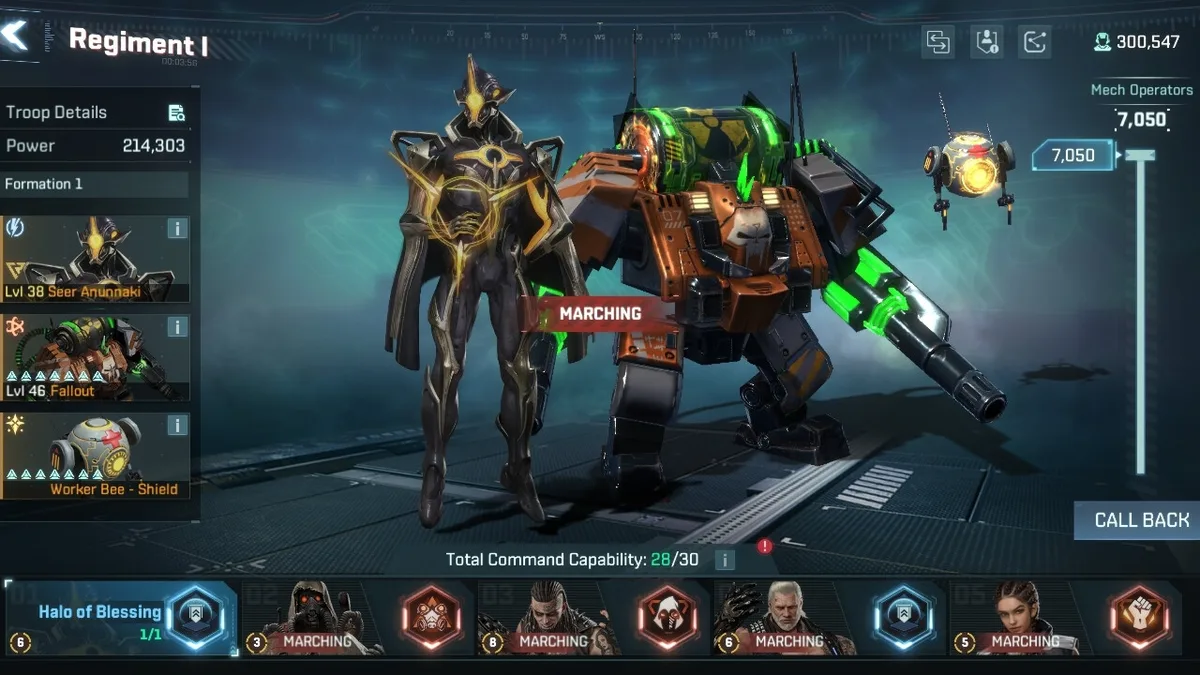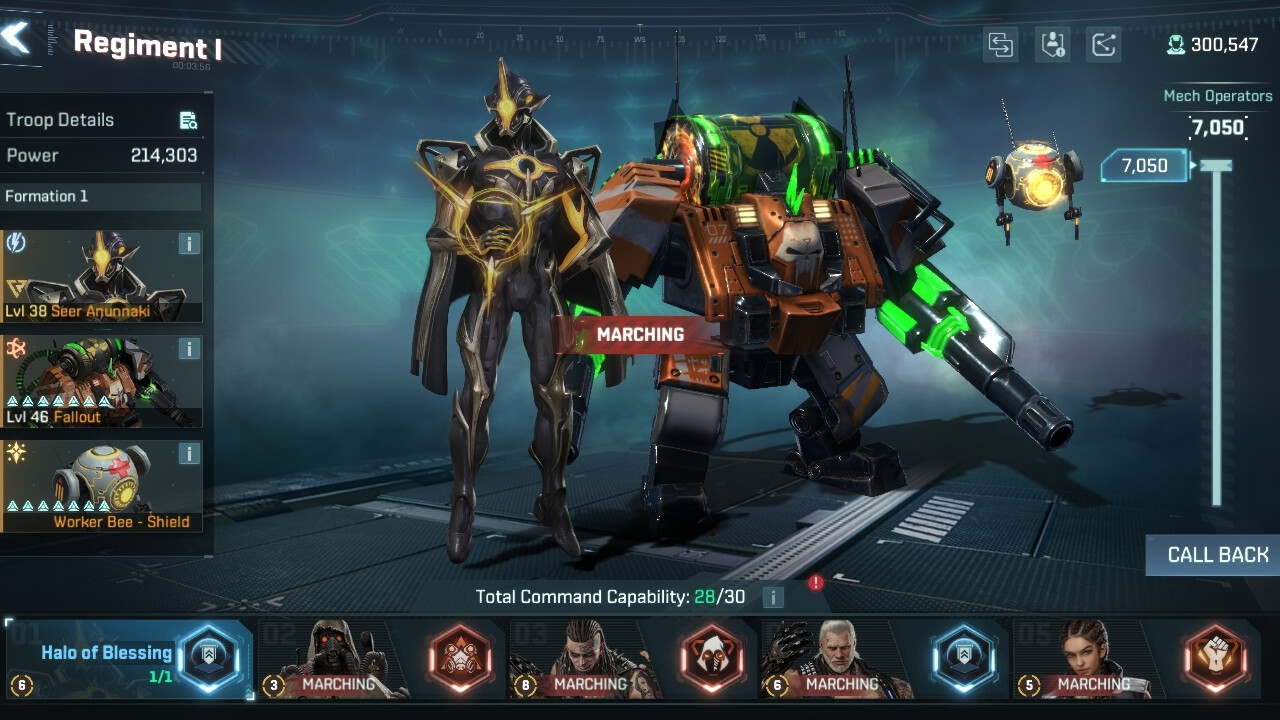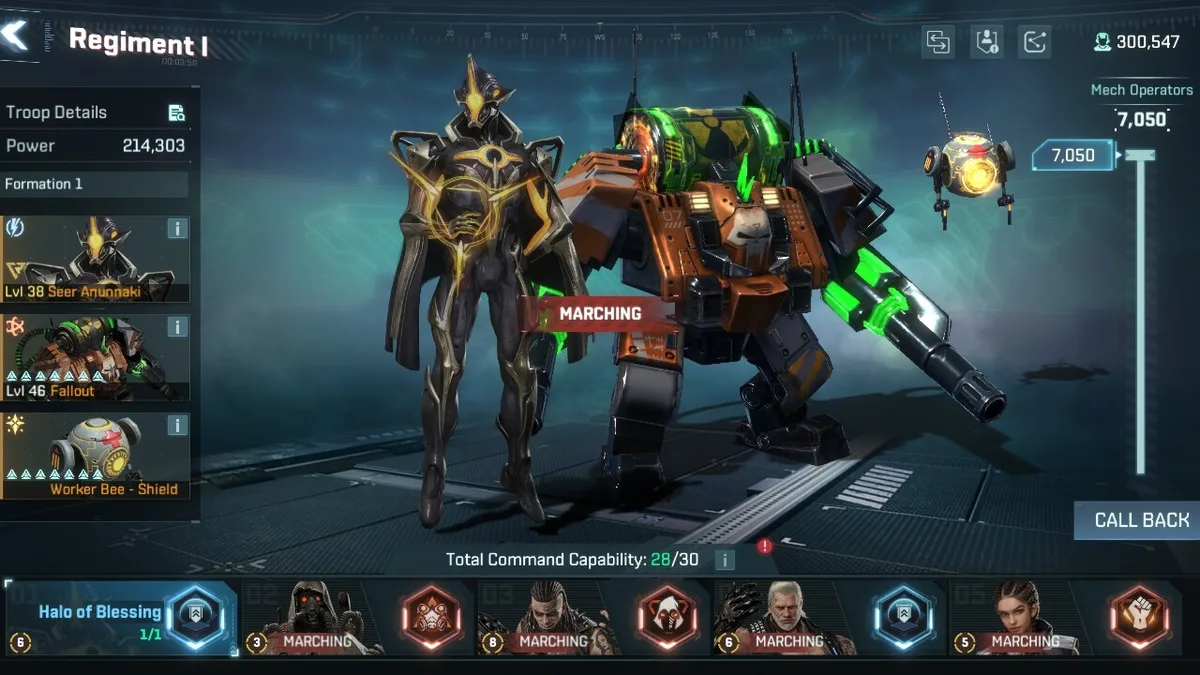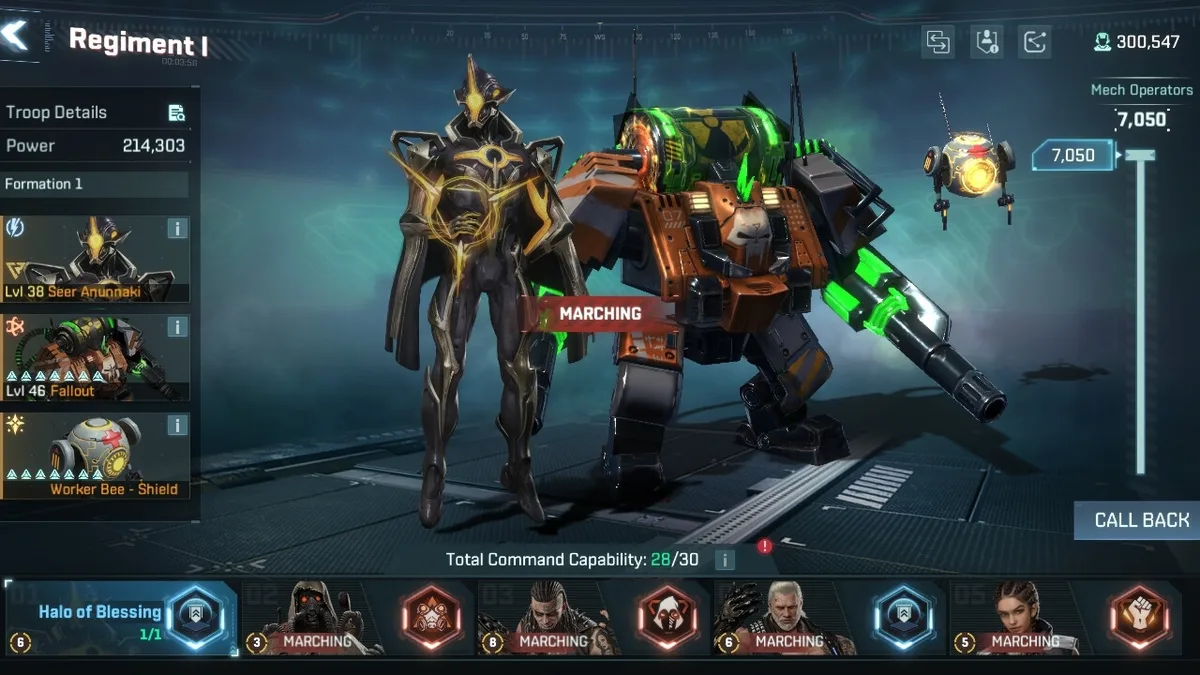
Project Entropy is FunPlus's sci-fi strategy MMO, and it lands in an interesting spot: its published minimum requirements are remarkably low, which is great news for accessibility but also means the game leans on your CPU and RAM in ways a low-end machine feels during the busy moments. It's newer and less documented than the big mobile 4X titles, so this guide sticks to principles that hold regardless of patch, rather than precise FPS figures nobody can reliably confirm. Here's how to get it running smoothly on Windows.
How to run Project Entropy on PC
Project Entropy is available on Steam (app 2806410), so on Windows you install it like any other PC game — no emulator required. That's the route to use: a native Steam build patches automatically, integrates cleanly with your drivers, and avoids the overhead of an Android layer entirely.
The published requirements are forgiving. The minimum spec floats around a very old dual-core CPU, 4 GB of RAM, a GeForce GTX 460-class GPU, and roughly 8 GB of free disk space. Those numbers will launch the game, but treat them as the "it turns on" bar, not the "it plays well" bar. For an actual comfortable experience, plan for:
- RAM: 8 GB is the realistic floor, 16 GB the practical target for stable play. Strategy MMOs keep a lot of world state in memory, and this is where a 4 GB machine falls over.
- GPU: a GTX 1060-class card (or its AMD/Intel equivalent) comfortably handles 1080p at Low–Medium. Anything newer gives you headroom for the busy scenes.
- Storage: an SSD. Load times and world streaming matter far more here than raw frame rate.
- A note on Steam Deck: at time of writing the game isn't reported to run on Steam Deck, so plan for a Windows desktop or laptop.
Because the game is young, keep the client updated and check the Steam store/community for the current requirements before a big hardware decision — a live-service MMO's demands drift upward over time as content is added.
Best settings for stable large-scale strategy
With a game this light to render, your goal isn't chasing maximum frames — it's consistency when the screen gets busy. Real-time strategy stutters hardest during large battles and heavy unit counts, so tune for the worst case, not the empty map:
- Cap the frame rate. As with every strategy game you'll leave running for long stretches, an uncapped renderer just heats your machine for no benefit. Lock to 60 FPS (or 30 for a near-silent laptop). This is the highest-value single change on almost any hardware.
- Start at Medium, then adjust to your weakest moment. Set graphics to Medium and go find your busiest scene — a large-scale fight or a dense base view. If it holds smooth there, you can nudge settings up. If it stutters, that's your signal to come down, not the calm menus.
- Shadows and effects are the first things to lower. In practically every RTS, shadow quality and particle/effect density are the biggest drains during combat. Dropping shadows a notch typically buys the largest stability gain for the least visual loss. Turn effects down before you touch anything else if battles chug.
- Turn off motion blur. It adds nothing useful in a top-down strategy view and can muddy fast unit movement.
- Resolution and upscaling. If you're on a weaker GPU, render at 1600x900 rather than full 1080p — a nearly invisible change that frees real headroom. If the game exposes a resolution-scale slider or an upscaler, use it before you sacrifice actual settings.
- Windowed/borderless for multitasking. MMO strategy involves a lot of alt-tabbing to chat, guides and spreadsheets. Borderless windowed keeps alt-tab instant and avoids the mode-switch hitches fullscreen can cause.
The principle throughout: a locked, consistent 60 (or 30) that never dips during a big fight beats a jittery 120 that collapses the moment the action starts.
Fixing stutter, crashes and other snags
Project Entropy's early-life issues are the usual suspects for a young live-service PC game:
- Stutter during large battles. Lower shadows and effect density first, then cap the frame rate. This is by far the most common complaint in any RTS and the fixes are reliable.
- Crash on launch or black screen. Update your GPU driver — this resolves the majority of launch-time graphical crashes across every game. Then, in Steam, use Verify integrity of game files to repair a bad or interrupted download.
- Poor performance on a "minimum spec" machine. If you're near the published floor, the honest fix is expectations plus RAM. 4 GB systems will struggle once the world fills in; 8 GB+ and an SSD transform the experience more than any in-game slider.
- Long-session slowdown / memory creep. Live-service clients balloon over hours. If it feels sluggish after a marathon, fully restart the client — it clears far more than logging back to the menu.
- Stutter that isn't the GPU. If frames are fine but the world hitches on load, that's storage or network. Move the game to an SSD and prefer a wired connection; an MMO streams world state constantly and a flaky connection shows up as hitching, not just lag.
Hardware picks
Because the game is light to render, spend on the parts that actually decide smoothness:
- Budget / entry: quad-core CPU, 8 GB RAM, an SSD, and a GTX 1050–1060-class GPU. This plays comfortably at 1080p Low–Medium, capped.
- Comfortable everyday: hexa-core CPU, 16 GB RAM, SSD, and a GTX 1660 / RTX 2060-class GPU or newer. Steady Medium–High with headroom for the busy scenes.
- Where the money matters: RAM and SSD first, then CPU, then GPU. For a strategy MMO like this, world state and streaming stress memory and storage long before they stress your graphics card.
Bottom line: install it from Steam, cap your frame rate, set graphics to Medium and tune against your busiest battle rather than the calm map, and prioritize 16 GB of RAM and an SSD over a flashy GPU. Because the game is still evolving, re-check the current requirements after major updates — but those fundamentals will keep Project Entropy smooth regardless of what the next patch brings.