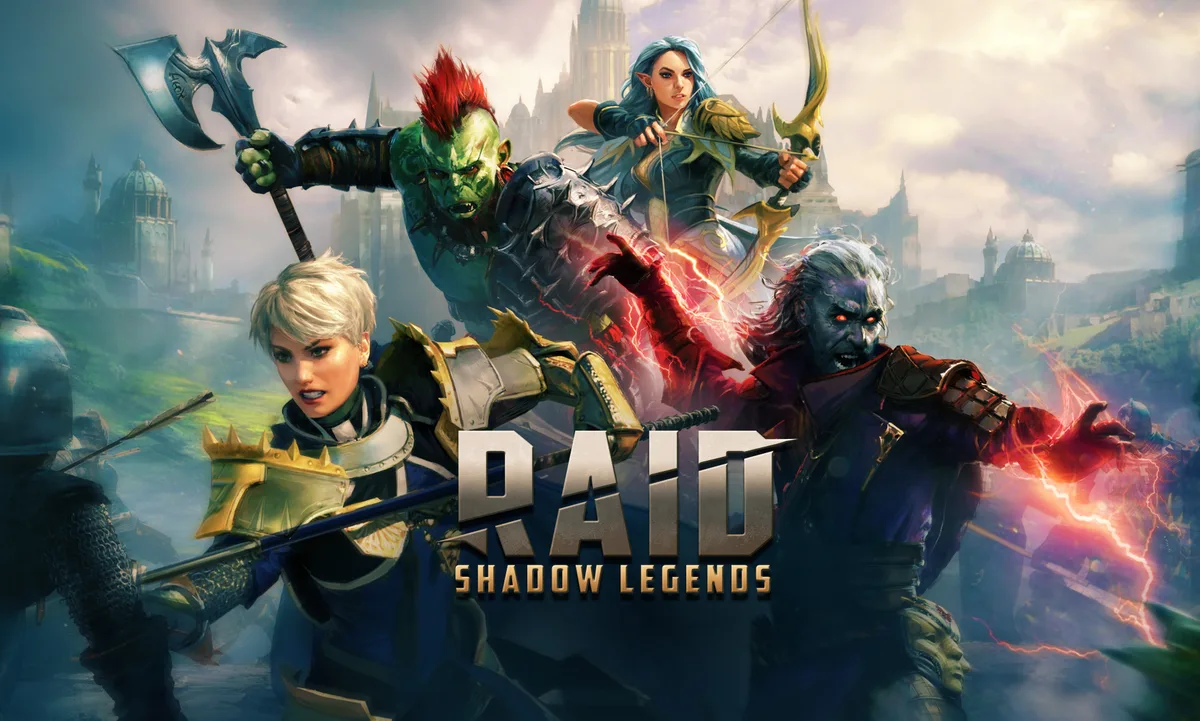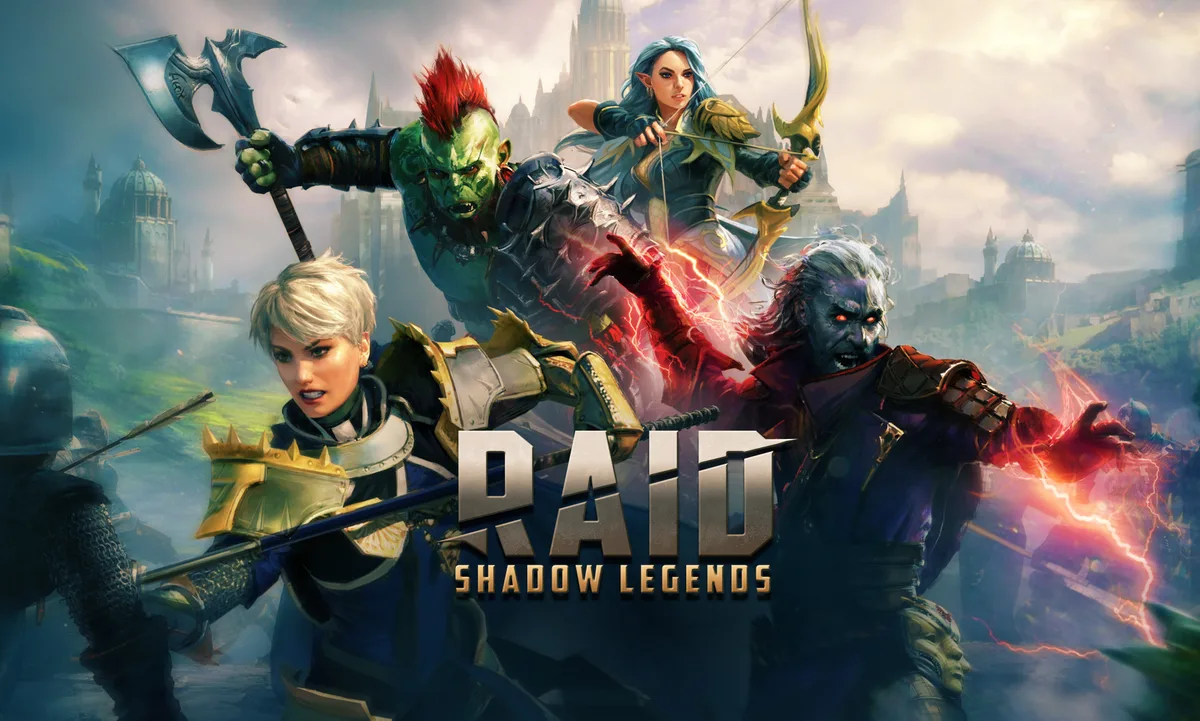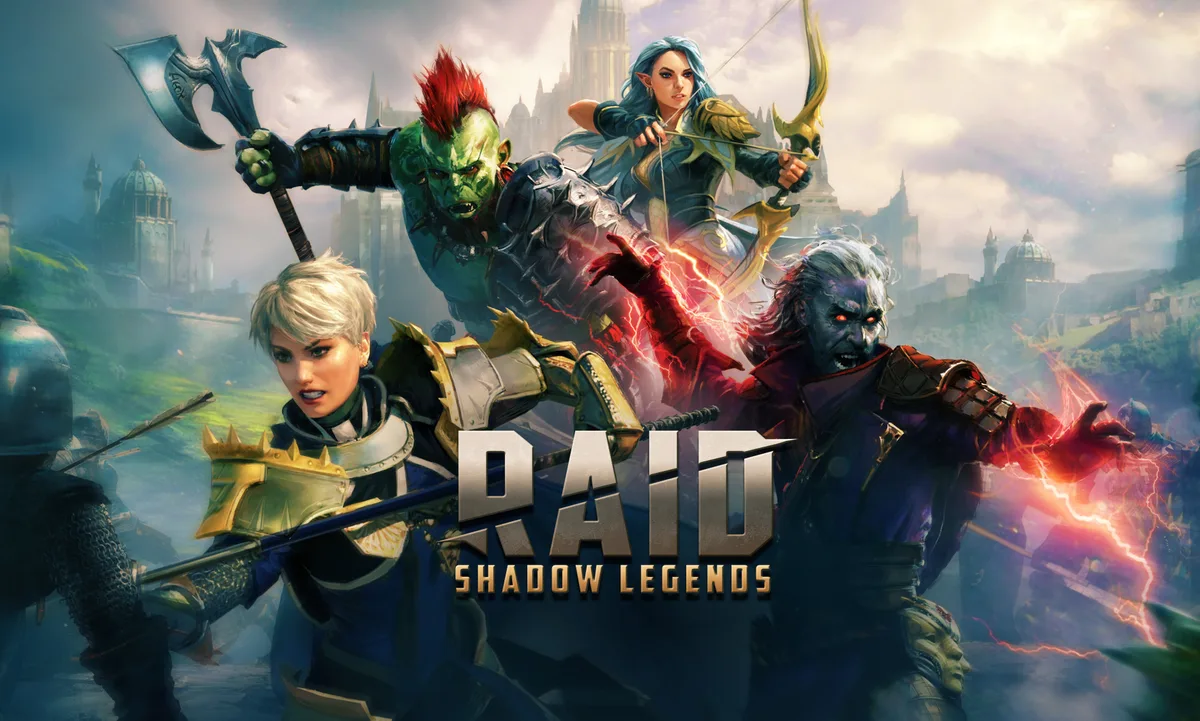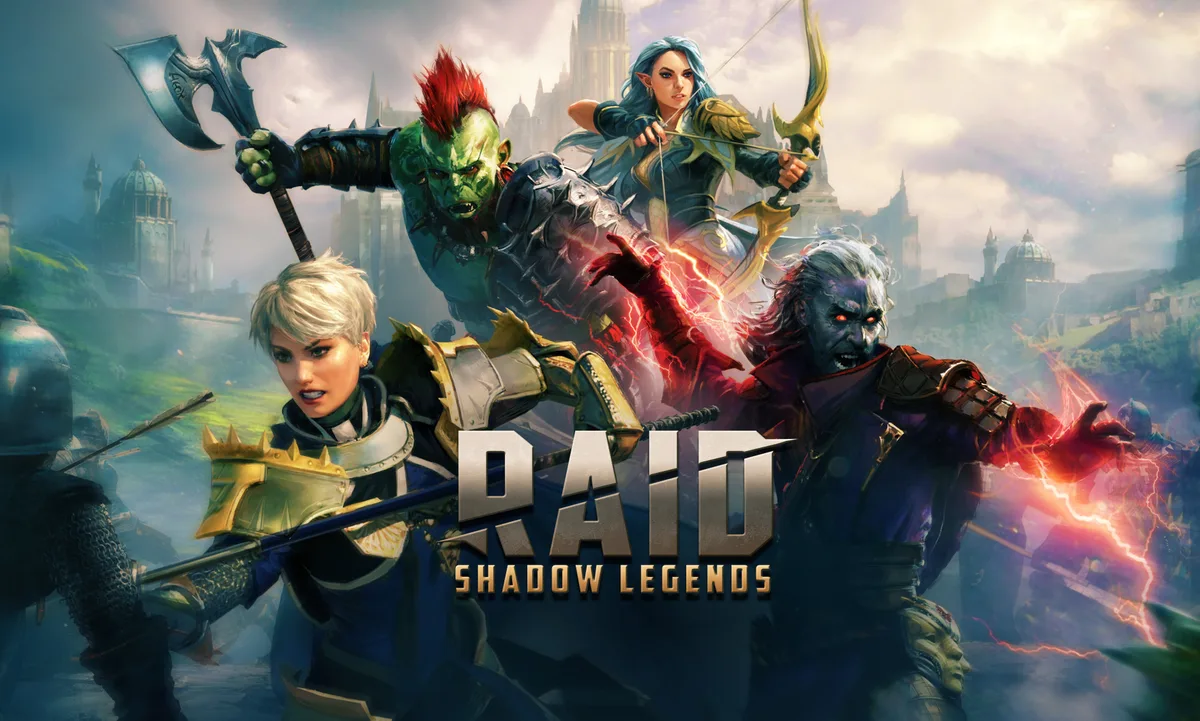
RAID: Shadow Legends is a gacha RPG you will spend a lot of hours in — auto-farming campaign stages, grinding Clan Boss, chewing through Dungeons. That makes it exactly the kind of game where running it well on Windows pays off every single day. And unlike most mobile ports, RAID has a genuinely good native PC client. If you're still playing it through BlueStacks out of habit, you're leaving performance and stability on the table. Here's how to do it properly.
How to run RAID on Windows: use Plarium Play, not an emulator
Plarium ships Plarium Play, an official native launcher for Windows and Mac. This is the way to play RAID on PC, full stop. It's not an emulator — it's a real desktop build of the game, which means better stability, higher and unlocked frame rates, fully configurable graphics, and native keyboard/mouse controls, none of which you get cleanly through an Android layer.
Setup is straightforward: download Plarium Play from the official RAID/Plarium site, install it, log into your existing account (your mobile progress carries over — RAID uses a single account across devices), and let it download the PC assets. From then on it patches itself.
Baseline system requirements to plan around:
- OS: Windows 10 or newer
- RAM: 4 GB minimum, 8 GB recommended — and 8 GB is what you actually want, because RAID's HD PC textures and long sessions are memory-hungry
- CPU: an Intel Core i5-4460-class chip or better for comfortable play
- GPU: it will start on Intel HD integrated graphics, but a discrete card (a GTX 970-class GPU is the reference for maxed settings) gives you clean high settings and unlocked frame rate
- Storage: ~5 GB free, on an SSD if at all possible — load times between the dozens of menus and battles you'll cycle through matter more here than raw FPS
Only reach for an emulator (BlueStacks, LDPlayer) if you specifically want to run multiple accounts at once via multi-instancing, which Plarium Play doesn't do. For a single account, Plarium Play wins on every axis.
Best graphics settings for smooth farming
RAID's PC client exposes real graphics options, and the goal isn't maximum eye candy — it's a cool, quiet machine that can auto-farm for hours without throttling. Here's how I'd set it:
- Frame rate: cap it. Plarium Play supports unlimited frame rate, which sounds great and is actually a trap for a turn-based RPG. There is zero gameplay benefit to rendering 300 FPS of a menu, and it will pin your GPU and roast your laptop. Cap to 60 FPS (or 30 for near-silent farming). This is the highest-impact change you can make.
- Graphics quality: Medium–High. The differences between High and Ultra in RAID are lighting, self-shading and effects that don't affect how fast you clear a stage. Medium-High looks great and leaves thermal headroom.
- Turn off motion blur. It adds nothing in a turn-based game and just muddies fast attack animations.
- Battle speed and skip: your real "performance" settings. RAID lets you run battles at 2x/3x/4x speed and auto-repeat. For grinding, this does more for your throughput than any graphics tweak — max the speed multiplier and use the auto-battle/multi-battle features to loop farm runs.
- Resolution: native if you have the GPU, one step down if you don't. On integrated graphics, running windowed at 1600x900 instead of full 1080p is a free, invisible performance win.
The philosophy: RAID rewards sustained smoothness over peak fidelity. You're not admiring the scenery, you're clearing 12-3 for the hundredth time.
Fixing stutter, crashes and freezes
RAID's common PC problems have well-understood fixes:
- Stutter or fan noise during auto-farm. Uncapped frame rate, nine times out of ten. Cap it and drop to Medium-High. If it continues, confirm your GPU driver isn't forcing "maximum performance" for the launcher.
- Client won't launch or is stuck updating. Run Plarium Play as administrator, and if a patch hangs, use the launcher's repair/verify option (or reinstall the launcher — your account is server-side, so you lose nothing). Antivirus occasionally quarantines the updater; whitelist Plarium Play if downloads keep failing.
- Long-session slowdown and memory creep. RAID left open for hours can balloon in RAM. If it feels sluggish after a marathon session, fully close and reopen the client — it clears far more than backing out to the menu.
- Black screen or crash on battle load. Almost always a GPU driver issue. Update to the current NVIDIA/AMD/Intel driver first; this resolves the majority of RAID graphical crashes.
- Stutter specifically on integrated graphics. Lower resolution and graphics quality, cap FPS to 30, and close background apps (browsers with many tabs are the usual culprit competing for RAM).
Hardware picks
RAID is not a hardware-hungry game; it's a stability and RAM game because of how much time you spend in it:
- Comfortable everyday tier: any machine with a quad-core CPU, 8 GB RAM, an SSD, and integrated graphics. This runs Plarium Play cleanly at Medium-High, capped 60.
- Nicer experience: 16 GB RAM and a modest discrete GPU (anything GTX 1050-class or newer). You'll run high settings, uncapped if you insist, and keep a browser open alongside without a hitch.
- Multi-account via emulator: 16 GB RAM minimum, ideally 32 GB, and a real quad/hexa-core CPU, since each emulator instance is a full virtual device. Enable hardware virtualization in BIOS.
The bottom line: install Plarium Play, cap your frame rate to 60, run Medium-High graphics, and lean on RAID's battle-speed and auto-repeat features for the actual grind. That combination gives you smooth, cool, all-day farming — which, for a game you'll open every single day, is exactly what you want.